
Visual Testing for Graphically Rich Apps: When DOM Snapshots Are Not Enough
Canvas, WebGL, maps, charts, and games render pixels, not DOM nodes. Testing them means comparing what the user actually sees.
Most visual testing tools grew up around a comfortable assumption: the interface is a DOM tree, so you can snapshot the tree and diff it. For a form-and-button web app, that works well.
Then you add a chart, or a map, or a WebGL scene, a canvas-based editor, a PDF preview, a video overlay, a game. From the DOM's point of view, all of these are a single opaque element:
<canvas width="1920" height="1080"></canvas>
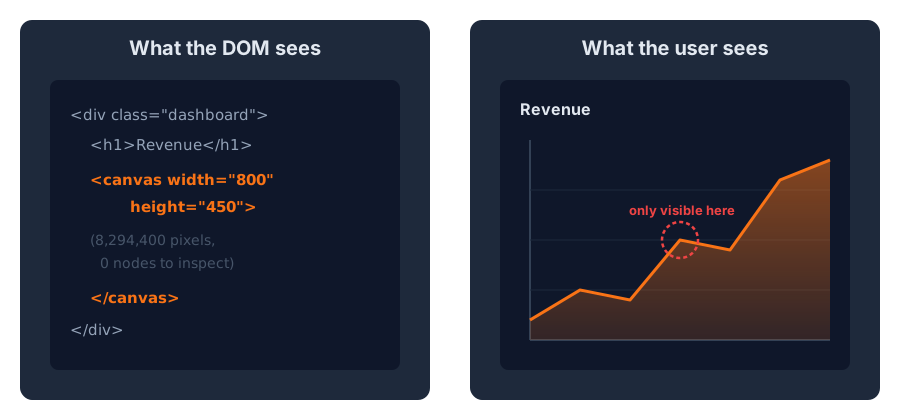
Everything your user actually looks at (the data curve that flipped upside down, the map labels colliding, the material that lost its texture) happens inside those pixels, invisible to any DOM-based check. The interface can still be tested, but it can no longer be inspected through the DOM.
Where the DOM Assumption Breaks
Charts are the most common case. A D3 or canvas-rendered chart can pass every unit test while rendering nonsense: axis labels overlapping after a locale change, a color scale collapsing to one color, a legend pushed off-screen. The data pipeline is correct while the picture is wrong.
Maps have the same problem. Tile rendering, label placement, and symbol collision are resolved at render time. A style update that garbles label priorities won't throw an error; it will just make the map unreadable.
In canvas-based editors and design tools (whiteboards, image editors, diagram tools), the whole product is a canvas. There is no DOM to snapshot, only the frame.
WebGL and 3D content behaves the same way, whether it's a product configurator, data viz in three dimensions, or a digital twin. A shader tweak or a driver difference changes the rendered result without changing a single DOM node.
Games push this the furthest: every frame is rendered, nothing is inspectable, and rendering regressions routinely survive playtesting. It's why game engines pioneered perceptual rendering QA, and why the techniques that work for games work for every app on this list.
Pixels Are the Test Oracle
For these interfaces, the only artifact that reflects what the user sees is the rendered frame. So the test has to be: capture the frame, compare it to an approved baseline, flag what changed.
That immediately raises the problem that killed many first attempts at screenshot testing: exact pixel comparison is too brittle for rendered content. GPU drivers round floating point differently. Anti-aliasing varies between environments. Some effects are stochastic by design. A naive pixel diff of a WebGL scene fails on every run, teaching the team to ignore it.
The fix is the same one graphics researchers arrived at: compare perceptually. NVIDIA's ꟻLIP evaluator models human vision (spatial acuity at typical viewing distance, color sensitivity, edge perception) and scores each pixel by whether a person would notice the difference. Imperceptible rendering variance scores near zero; a wrong texture, a shifted element, or a broken color scale lights up. We covered the mechanics in Pixel Diff vs Perceptual Diff.
Exact comparison still has a place (pixel-identical assets, tightly controlled renderers), but for graphically rich content, perceptual comparison is what makes the signal trustworthy enough to gate a pull request on.
What a Working Setup Looks Like
Testing rendered interfaces adds two requirements on top of ordinary screenshot testing:
1. Deterministic Frames
You can't compare frames that legitimately differ every run. The techniques are the same across web and game rendering:
- Freeze animations and transitions; drive time from a mocked clock
- Seed any randomness (particle systems, jittered sampling, generated data)
- Wait for everything: network idle, fonts, images, decoded video frames, and for WebGL, shader compilation and first stable frame
- Fix the viewport, device pixel ratio, and camera
- Use fixed test data: a frozen dataset for charts, a pinned region and zoom for maps
2. A Comparison That Understands Environments
The same scene rendered on two GPUs or two browsers is not pixel-identical, and never will be. That has two consequences:
- Compare like with like: tag each run with metadata (
platform,browser,gpu) and compare runs against baselines from the same environment. In PixelEagle this is a comparison option (--same platform), not a folder convention you maintain by hand. - Tolerate the noise floor while still catching the signal: perceptual comparison with tunable sensitivity lets each project set its own threshold, strict for a design tool, more tolerant for a renderer with stochastic effects.
The rest of the pipeline is ordinary CI: capture frames however your stack allows (Playwright for anything in a browser, the engine's own screenshot facility for native apps and games), upload them as a run, compare against the project's golden record, and review flagged diffs with a heatmap that shows where and how much.
Why We Built PixelEagle This Way
PixelEagle is visual regression testing with a focus on graphically rich interfaces, and its design choices follow from everything above:
- It is capture-agnostic: screenshots are just PNGs uploaded from your CI, whether they come from Playwright, a game engine, or a headless renderer. If your stack can produce an image, it's testable.
- It offers both perceptual and exact evaluators: NVIDIA ꟻLIP for rendered content, pixel-by-pixel when you need exactness, and hash matching for free when nothing changed.
- Baselines are matched on metadata, so runs tagged with platform, branch, or GPU are compared against the right baseline automatically.
- It is proven on difficult content: the Bevy game engine uses PixelEagle to catch rendering regressions across Linux, macOS, browsers, and real mobile devices, with hundreds of scenes per run.
If your product's most important pixels live inside a canvas, they deserve the same regression safety net as your buttons and forms. PixelEagle was built to give them one.
Key Takeaways
- DOM-based visual testing cannot see inside canvas, WebGL, maps, charts, or games; for that content the rendered pixels are the only artifact you can test
- Exact pixel comparison is too brittle for rendered content; perceptual comparison (NVIDIA ꟻLIP) makes the signal trustworthy
- Deterministic frames are a prerequisite: frozen time, seeded randomness, fixed viewports and cameras, stable test data
- Compare like with like: tag runs with environment metadata and let baselines match on it
- The techniques proven on game engines apply directly to any graphically rich application